Pages

My Beautiful and Ugly World Headline Animator

Showing posts with label how to. Show all posts

Monday, October 3, 2011

Cara Berbagi File atau Hardware lewat LAN (Kabel)

It happened yesterday actually, when I want some film files from my bros netbook and there were no usb cable nor flashdisk. Then, ah! I remember! I got a network cable from my college years. Made it myself at a lesson. I tried to use it for sharing files back then, but I don't really understand how to use it. And I failed. But I think I should try it one more time and... I did it this time... So satisfied of myself... hahaha. Thanks for someone's blog for it. Now I wanna post it with my own style. I make this post for my Indonesian friend, so I'll use Indonesian this time... Okay kawan-kawan... Mari kita mulai!

Hal yang sangat diperlukan pertama-tama ya tentu 2 pc/netbook/notebook n kabel jaringan atau biasa dikenal kabel UTP (Unshielded Twisted Pair). Kabel jaringan ini bisa dibeli, bisa juga dibuat sendiri. Murah ko harganya... Ato mau buat sendiri? Boleh...
Gini nih caranya: Beli dulu kabel UTP
Kabel UTP (Setelah dikupas)
sama konektor RJ 45 (Registered Jack 45),
kalo ada uang lebih tang crimping juga bisa dibeli,
kalo dirasa kemahalan ya tang crimpingnya pinjem dari temen ajalah... haha. Sediain gunting ato cutter. Yosh! Kita mulai pembuatannya. Kupas dulu lapisan pelindung (abu-abu) sepanjang yang diperlukan. Di dalamnya ada 8 kabel kecil warna-warni. Sekarang susun kabel-kabel di satu sisi seperti ini: Orange, Putih Orange, Biru, Hijau, Putih Hijau, Putih Biru, Coklat, Putih Coklat dan di sisi yang lain seperti ini: Biru, Putih Biru, Orange, Hijau, Putih Hijau, Putih Orange, Coklat, Putih Coklat (susunan kabel seperti ini disebut Cross Over). Rapikan ujung-ujung kabel tersebut agar sama panjang. Lalu masukkan ke konektor RJ45. Saat memasukkan kabel ke konektor, posisi kaitan konektor harus berada di bawah, jangan sampai terbalik. Setelah itu jepit ujung konektor pake tang crimping.
Kabel Jaringan yang udah siap pakai
Kalo kabel jaringan ini dibuat dengan benar berarti secara fisik pc-pc kita tadi bisa terhubung secara fisik.


Nah, sekarang tahap selanjutnya untuk sharing file ato hardware.
Setelah menghubungkan 2 pc dengan kabel jaringan tadi, sekarang waktunya setting jaringan atau network.
Karena kemaren netbook yang kupake udah pake windows 7 jadi gini caranya... beda-beda dikitlah sama OS windows yang laennya...

  • Klik Start
  • Klik Control Panel
  • Klik Network and Internet
  • Klik Network and Sharing Center


Klik Internet Protocol Version 4 (TCP/IPv4) lalu klik Properties

Klik Use the following IP address
Isi IP adress pc pertama dengan 192.168.1.1 dan komputer seterusnya dengan mengubah 1 digit terakhir menjadi 2, 3...dst.
Lalu tekan tombol TAB maka subnet mask akan otomatis terisi
Klik OK
Yaps! Sekarang komputernya sudah saling terhubung, tinggal share file atau hardwarenya...
-Klik kanan pada folder yang mau di share
-Di Share with pilih nobody
-Pilih Change Sharing Permission
Pilih Guest lalu klik Add

Pilih Read/Write untuk bisa merubah dan membaca isi folder atau pilih Read untuk membacanya saja
Klik Share
Klik Done
-Untuk membuka folder yang disharing tinggal ketik \\nama pc\ di pc yang satunya lagi tentunya...

Cara Sharing Printer
Hmh, yang satu ini belum pernah dicoba langsung sih...kurang tau juga kalo di windows 7 jadinya kaya gimana, jadi ya untuk sementara aq repost dulu aja ya... Minta ilmunya ya...yang punya blog infogaptek.com. Hehe...
-Klik Start
-Klik Control Panel
-Klik Printer and Faxes
-Klik kanan di printer yang mau di share. Pilih Share...
-Lalu pilih share this printer dan berikan share name.

Untuk menghubungkan komputer yang mau pake printer, tinggal ketik \\nama pc\ di eksplorer pilih printer mana yang tadi sudah di share, klik kanan lalu klik connect, jika muncul pertanyaan klik yes. Dan jangan lupa di Printer and Faxes printer tadi di klik kanan lalu klik set as default printer. Tada! Selesai sudah...

Wow...this post require so many times to be accomplished... fyuuuh... Kritik, saran, and pertanyaan? Monggo...

Sunday, February 27, 2011

Cara membuat Kimchi (김치 만드는 법)

Sebenernya aku belum pernah bikin sendiri...tapi pengen nyoba satu hari nanti...hehe. Abis kimchi keliatan menggoda banget sih... XP
Buat sekarang...aku pengen berbagi resepnya dulu aja deh sama dear readers. Okay! Here we go!
(Translated from wikiHow)
Kimchi, makanan dari kubis yang difermentasi yang berasal dari Korea, adalah makanan yang sangat beraroma dan bisa digunakan sebagai sayuran pendamping, sebagai makanan perangsang, atau dicampur dalam sup dan tumisan.


Bahan:
Untuk 1 1/2 kuart (1 kuart=1,14 liter)
-3 sendok makan ditambah satu sendok teh garam laut
-6 cangkir air
-1 kg kubis Cina (Napa), potong persegi ukuran 2 inci.
-6 daun bawang, potong dengan panjang 2 inci, lalu belah.
-1 1/2 sendok makan jahe segar yang diiris
-1 cangkir bawang putih yang diiris
-3 sendok makan saus udang asin atau saus ikan haring (tersedia di toko-toko khusus Korea)
-1/4 cangkir cabai bubuk Korea (atau cabai bubuk lainnya)
-1 cangkir parutan lobak Korea (moo dalam bahasa Korea)
-1 sendok teh gula

Alat:
-Wadah keramik atau wadah dari gelas yang besar
-Freezer bag
-Pisau

Langkah-langkah:
1. Larutkan 3 sendok makan garam dalam air.
2. Letakkan kubis di dalam sebuah mangkuk yang besar, wadah dari tembikar, atau pot non reaktif, dan tuangkan air garam diatasnya.
3. Tindih kubis dengan sebuah piring. Biarkan selama 12 jam.
4. Tiriskan kubis, sisakan air garamnya. Campur kubis dengan bahan-bahan yang tersisa, termasuk 1 sendok teh garam. Kemas campuran tadi ke dalam toples ukuran 2 liter. Tuangkan air garam secukupnya ke atas kubis untuk menutupinya. Tekan freezer bag ke mulut toples, dan tuangkan sisa air garam ke dalamnya. Tutup freezer bagnya. Biarkan kimchi bermfermentasi di tempat yang dingin, di suhu yang tidak lebih dari 68 derajat F(20 derajat C), untuk 3 sampai 6 hari, sampai kimchinya seasam yang kamu inginkan.
5. Angkat kantong air garamnya, dan tutup erat toplesnya. Simpan kimchi di kulkas, di mana kimchi akan disimpan selama berbulan-bulan.

Gampang ya buatnya? Cuma bahannya aja kayaknya susah dicari... Semoga suatu hari nanti bisa aku coba.
Buat yang mau bikin, selamat mencoba...^^ Maaf kalau terjemahannya agak rancu, maklum...bukan profesional.haha XD

Source:wikiHow, Google Translate, Advanced English-Indonesian Dictionary

Thursday, February 3, 2011

(Update Blog Otomatis di Twitter) Share your Blog Updates Automatically to Twitter

Tired to copy and paste your blog updates URL to your Twitter account to let others know about your new posts? Why don't you join FeedBurner and Tweet your blog updates automatically? Let's check it out...

Udah cape sama ritual copy paste buat bagi-bagi update blog kamu di twitter? Gabung aja di FeedBurner dan kamu bisa update blog kamu secara otomatis di Twitter. Ini langkah-langkahnya...

1. Go to http://feedburner.google.com/ and type your blog URL in Burn a feed right this instant. Type your blog or feed address here: then hit next.
Pergi ke http://feedburner.google.com/ dan ketik URL blog kamu di Burn a feed right this instant. Type your blog or feed address here: lalu klik next.
2. Just hit next in Identify Feed Source.
Langsung klik next aja di Identify Feed Source.
3. Costumize your feed title and feed address or leave it as it is in Welcome! Let us burn a feed for you. and then hit next.
Atur Feed Title dan Feed Address mu atau biarkan kalo udah sesuai dengan keinginanmu di Welcome! Let us burn a feed for you. dan klik next.
4. Hit next in Congrats! Your FeedBurner feed is now live. Want to dress it up a little?
Klik next di Congrats! Your FeedBurner feed is now live. Want to dress it up a little?
5. In Get More Gusto From Your Feed Traffic Statistics. just give checks to all of the unchecked boxes, hit next.
Di Get More Gusto From Your Feed Traffic Statistics. ceklist aja semua boxnya lalu klik next.
6. Go to Publicize tab and click Socialize on the left sidebar.
Klik tab Publicize dan klik Socialize di sisi kiri.

7. Click on “Add a Twitter account” and you will be taken to the Twitter Oauth page to validate the Feedburner application. Click “Allow” and you will be prompted back in the Feedburner account.
Klik "Add a Twitter account" dan kamu akan dibawa ke halaman otorisasi Twitter untuk memvalidasi aplikasi FeedBurner. Click "Allow" dan kamu akan diprompt kembali ke akun FeedBurnermu.
8. Customization: You can customize the Rss feed of your blog and choose exactly which items are posted in your Twitter account. Here is how the settings in Feedburner look:
Kostumisasi: Kamu bisa mengatur RSS Feed dari blogmu dan memilih item-item nama yang ingin kamu tweet di akun Twittermu. Ini tampilan setting di FeedBurner:

- You can choose to use hash tags to automatically appear in your Tweets.
Kamu bisa memilih untuk menggunakan hashtags secara otomatis di Tweet mu.
- Additional text and the number of items syndicated in each cross update can be set according to your choice.
Teks tambahan dan jumlah item yang akan diterbitkan bisa kamu set sesuai keinginanmu.
-Feedburner allows a custom keyword filter and you can allow or deny access to specific posts being posted in your Twitter account.
FeedBurner menyediakan custom keyword filter dan kamu bisa mengijinkan atau tidak mengijinkan akses ke post-post tertentu yang dipostkan di Twittermu.
-You can choose to post updates from a specific category of your blog in your Twitter account. Now, that’s a real improvement.
Kamu bisa memilih untuk mempostkan update-updatemu dari kategori tertentu blogmu di akun Twittermu.
-You can add multiple Twitter accounts in Feedburner and can safely ignore the much popular service Twitterfeed.
Kamu juga bisa menambahkan lebih dari satu akun Twitter di Feedburner.

Note: The default URL shortener used by Feedburner is goo.gl
Catatan: Penyingkat URL default yang digunakan FeedBurner adalah goo.gl

Thursday, January 20, 2011

How to Make a Video Screenshot (Cara bikin video screenshot)

Have any favourite video? Want images from a singer or actor with his/her act pose in the video clip?
You can just simply make a screenshot from your video... It's so easy you see... And much easier if you are using Windows7.
But first, I will explain how to make it with Windows XP OS, cause there's a change that you should make before you can take any screenshot from your video.

Punya video kesukaan? Pengen punya image dari penyanyi ato artis dengan gaya video klipnya?
Bikin screenshot aja dari videomu... Caranya gampang ko... Apalagi kalo udah pake Windows7.
Tapi pertama aku mau jelasin dulu buat yang OSnya pake Windows XP karena agak ribet.

The steps are/Langkah-langkahnya adalah:
  1. Right click on the desktop and select "Properties." Click on "Settings" and then "Advanced." Click "Troubleshooting" and under "Hardware Acceleration," select "None." Klik kanan di desktop, pilih properties. Klik settings lalu klik advanced. Klik troubleshooting, dan di bawah Hardware Acceleration pilih None.
  2. Begin playback of the video you want to capture. Play until you are at the frame you want to grab and then pause the video. Putar video yang mau dibikin screenshotnya. Mainkan sampai frame yang mau kamu ambil lalu pause videonya. (Saran: langkah ini enaknya pake Real Player)
  3. Press the "Print Screen" key on your keyboard. The image on your screen has now been saved to the clipboard. Tekan tombol Print Screen/PRTSC SYSRQ di keyboardmu. Image yang ada di layar sekarang udah di save di clipboard.
  4. Open a graphics editor. Use MS paint, Photoshop, Paint Shop or whatever program you use to create images. Open a blank document if the program doesn't have a "Paste as New" option. Buka Grafik Editor. Gunakan MS Paint, Photoshop atau program apa pun yang kamu gunakan untuk membuat image. Buka dokumen baru dengan format blank jika program tersebut tidak punya opsi Paste as New.
  5. Paste the screen capture into a new image. Press "CTRL - V" or choose "Edit > Paste New." Paste image yang tadi udah di copy ke image yang baru. Tekan CTRL+V atau pilih Edit->Paste New.
  6. Crop your image. Use the Crop tool to isolate the video. Potong imagemu. Gunakan Crop tool untuk mengisolasi video.
  7. Save your video screenshot. Simpan screenshotmu.
  8. For Windows7 user just skip step1. Untuk pengguna Windows7, langkah1 dilewat aja.
Notes:
  • To avoid the need for cropping, view the video in full screen. Untuk menghindari perlunya proses crop, lihat video di mode full screen.
  • On Macintosh computers, simply run the Image Capture application. Untuk komputer Macintosh, langsung jalankan saja aplikasi Image Capture.
  • Don't forget to set your hardware acceleration back to normal after taking your screenshot. Jangan lupa merubah kembali pengaturan Hardware Acceleration sesudah kamu selesai mengambil screenshot.
  • Don't copy anything else to the clipboard before pasting the screenshot. Jangan mengcopy apa pun pada clipboard sebelum kamu paste screenshotnya.
See? So easy right? Just give it a try... ^^

Source:  How to Make a Video Screenshot | eHow.com http://www.ehow.com/how_2032296_make-video-screenshot.html#ixzz1BXi6EyNh

Tuesday, January 11, 2011

How to Input Korean Characters (한글) in Windows7 Ultimate

This is my own experience.Why Korean? Because I like some male entertainers from Korea. A very simple and childish reason right?
Hehehe...
The first time I fall in love with Korean is from the drama (꽃보다 남자)

, and then falling in love with one of the characters who's played by 김현중 (SS501 Leader)

then I like SS501->

like Kpop->like the guys personality->and finally, wants to understand their language!
So, bahasa Indonesia lagi ah... Intinya... ingin berbagi pengalaman aja... Hayu... Ah...
Sebenernya sih settingan ini juga berlaku buat yang pengen ngetik bahasa yang punya simbol sendiri, kaya Arab, Jepang, trus China, dll lah pokoknya. Here we go!

- Open Control Panel->

Clock, Language, and Region->

change keyboard or other input methods->

keyboards and language->change keyboard

- In General click add.

Select Korean->Korean(Default)->give a check to Microsoft IME->OK->OK
-Now you can start to type with Korean in your computer.
- Change the language by using the language bar on the taskbar.

Click the keyboard icon beside it and choose microsoft IME.

- Change

to


To easily swap between hangul and alphabet just press ALT.
Confused? Just ask... ^^

Add a Banner to Your Blog on Blogspot (Masang Banner di Blogmu @ Blogspot)

Halo! he... XD nerusin post yang tadi nih. Bilingual lagi kayanya... moodnya lagi bagus! hoho! Okay, buat blogger yang pengen tau gimana cara nge add banner di blog kamu, seperti yang aku alamin tadi siang, info ini insya Alloh akan sangat berguna. Okay! So, let's start with the english version!

- Make an account in image hosting site such as photobucket.
- Upload your desired images there and then copy the image code. Just simply click it and it will be copied automatically.
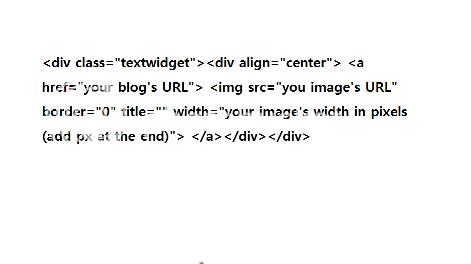
- Open your blog, go to design->add a gadget->choose the text gadget.
- Type:


- Click save and view your blog to see the result.

Indonesian version
- Buat account di image hosting site seperti photobucket.
- Upload image yang kamu inginkan buat jadi banner di account itu lalu copy image codenya. Click aja image codenya ntar otomatis kecopy sendiri ko...
- Buka blogmu, buka design->add a gadget->pilih yang text.
- Ketik:


- Click save terus liat blog mu deh buat liat hasilnya.

Selamat mencoba!

Make a Moving GIF Image (Bikin GIF Image yang bergerak)

Rencananya sih aku pengen bikin post dua bahasa hari ini, mungkin berlanjut hari-hari selanjutnya... bisa juga ngga... tergantung mood sama waktu yang tersedia. hehe.
Actually this is a lesson that I've got from my college years. Thank you dear lecturer!!! hoho... See my banner on the right? The moving pictures of me? I made it myself of course. It would be embarassing for me to ask someone to make something like that for me. Haha. So I just want to share how did exactly I made my lovely banner... XD

- First, adjust the images size. You can use Photoshop or ACDSee to do it.
- Make a new folder for your adjusted images and move the images to the folder.
- There are many softwares that can help you to make a moving GIF, but this time I'll just explain how to make it with Adobe Image Ready, just because this is the only way I know right now. haha. XP
- So now all you have to do is open Adobe Image Ready->file->import->folder as frame. In animation, change the settings and view it with play button.
- Once you've satisfied with the animation works on your images, hit file->save optimized as->name ur file and place it where u want it and then save it.
- Done! XD

Indonesian version:
- Pertama, sesuaikan ukuran images. Kamu bisa gunain Photoshop atau ACDSee.
- Buat folder baru buat images yang udah disesuaikan tadi lalu pindahkan ke folder tersebut.
- Ada banyak software yang bisa digunakan untuk membuat GIF yang bergerak, tapi untuk kali ini aku cuma bisa ngejelasin bagaimana membuatnya pake Adobe Image Ready, karena kebetulan untuk saat ini hanya itu yang aku tau... hehe
- Sekarang tinggal buka Adobe Image Ready->file->import->folder as frame. Di animation, ubah settingnya dan mainkan GIFmu dengan play button.
- Sesudah kamu rasa hasilnya memuaskan, click file->save optimized as->kasih nama dan tempatkan di tempat yang kamu mau lalu save.
- Selesai...!

Semoga bermanfaat... ^^